gum

I have been a full-time vim user for 5 years. Naturally, I’m also a heavy
command line user and, even more naturally, I automate most of my workflows
using commands in bash (sorry zsh). Writing scripts to automate stuff is
fun. But there are times that I want to do stuff interactively with the shell
especially workflow involving a number of parameters. One of the ways to go
about it is writing a Go program. However, it could be too time-consuming even
if I am proficient with writing Go. All I need is to glue different commands
together. fzf is super handy when it comes to selections and it fits the use
case of tmux very well. When it comes to things like asking for user input,
presenting lines of data in a table or applying styles or formatting to output,
there are not many good tools can be used with shell. Luckily,
gum from charm.sh
can solve most of the problems mentioned here. It is an executable written in Go
(and it also means it can be used in all major operating systems). charm.sh has
a number of CLI tools created but we will focus only on gum in this post.
gum has a number of commands. choose, filter and file pretty much cover
most of the functionalities in fzf and it probably has a nicer interface in
terms of aesthetics. The usage of gum filter is very similar to fzf.
sha=$(gcloud builds list --limit 20 --format json \
  | jq -r '.[] | .substitutions.SHORT_SHA' \
  | fzf)
gum filter equivalent
sha=$(gcloud builds list --limit 20 --format json \
  | jq -r '.[] | .substitutions.SHORT_SHA' \
  | gum filter --limit=1)
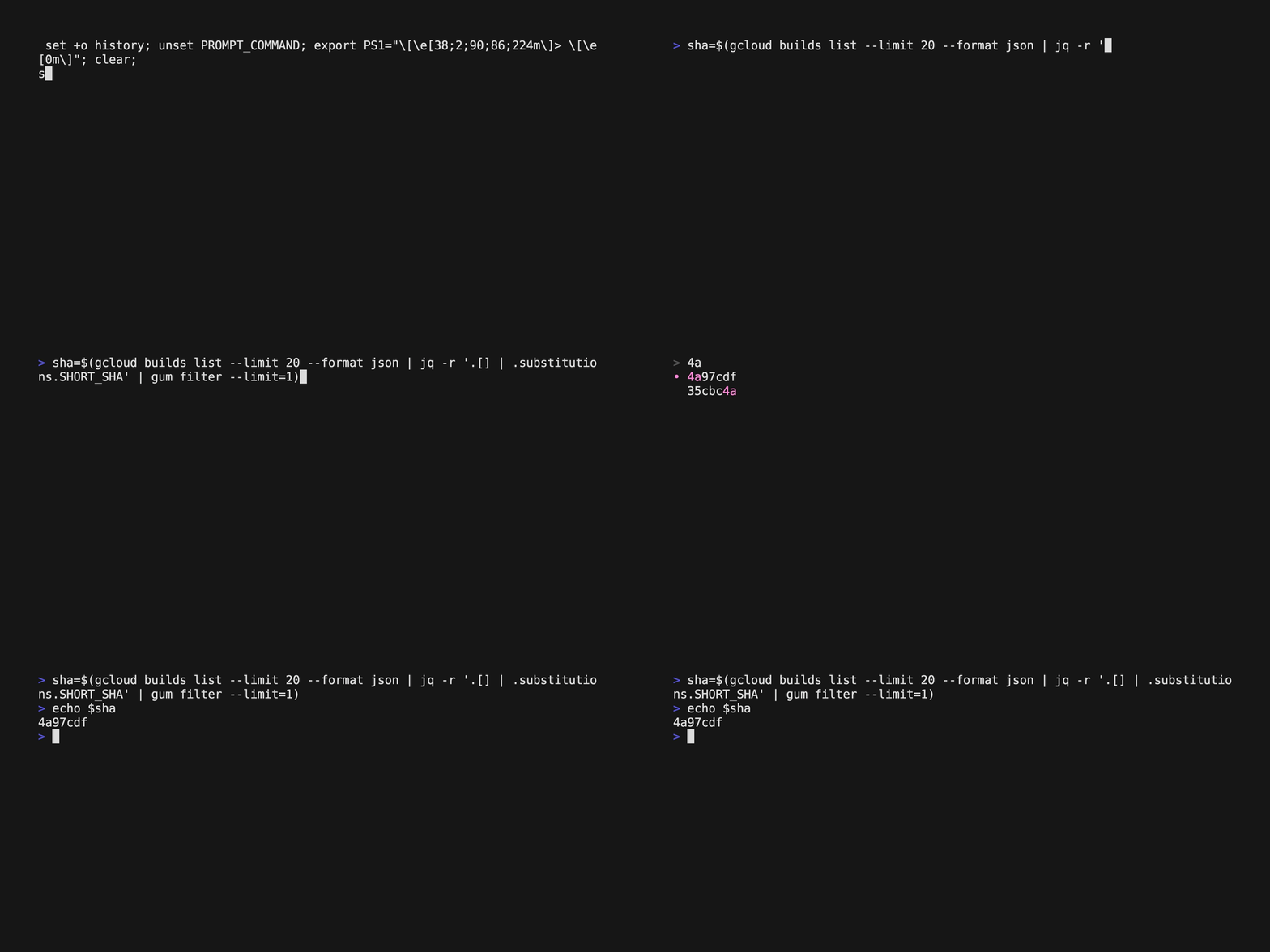
Another example with multiple selections.
fd | fzf -m | xargs nvim
gum filter equivalent
fd | gum filter --no-limit | xargs nvim
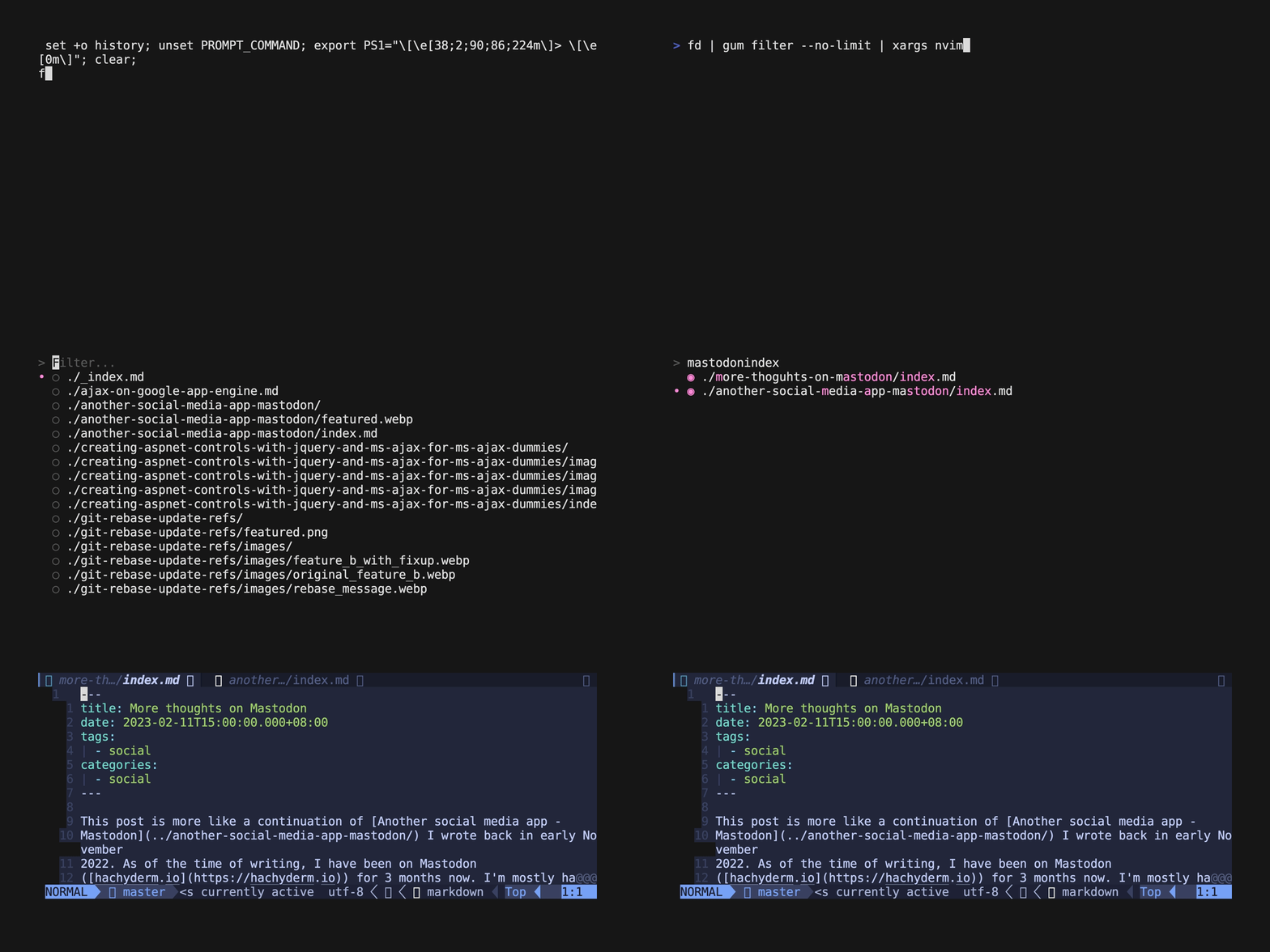
The usage of gum choose is very similar to gum filter but slightly different
in UI where it is tailored towards a selection of a smaller number of items and
it does not have filtering functionality.
gum file is similar to running fzf in command line without any piped input.
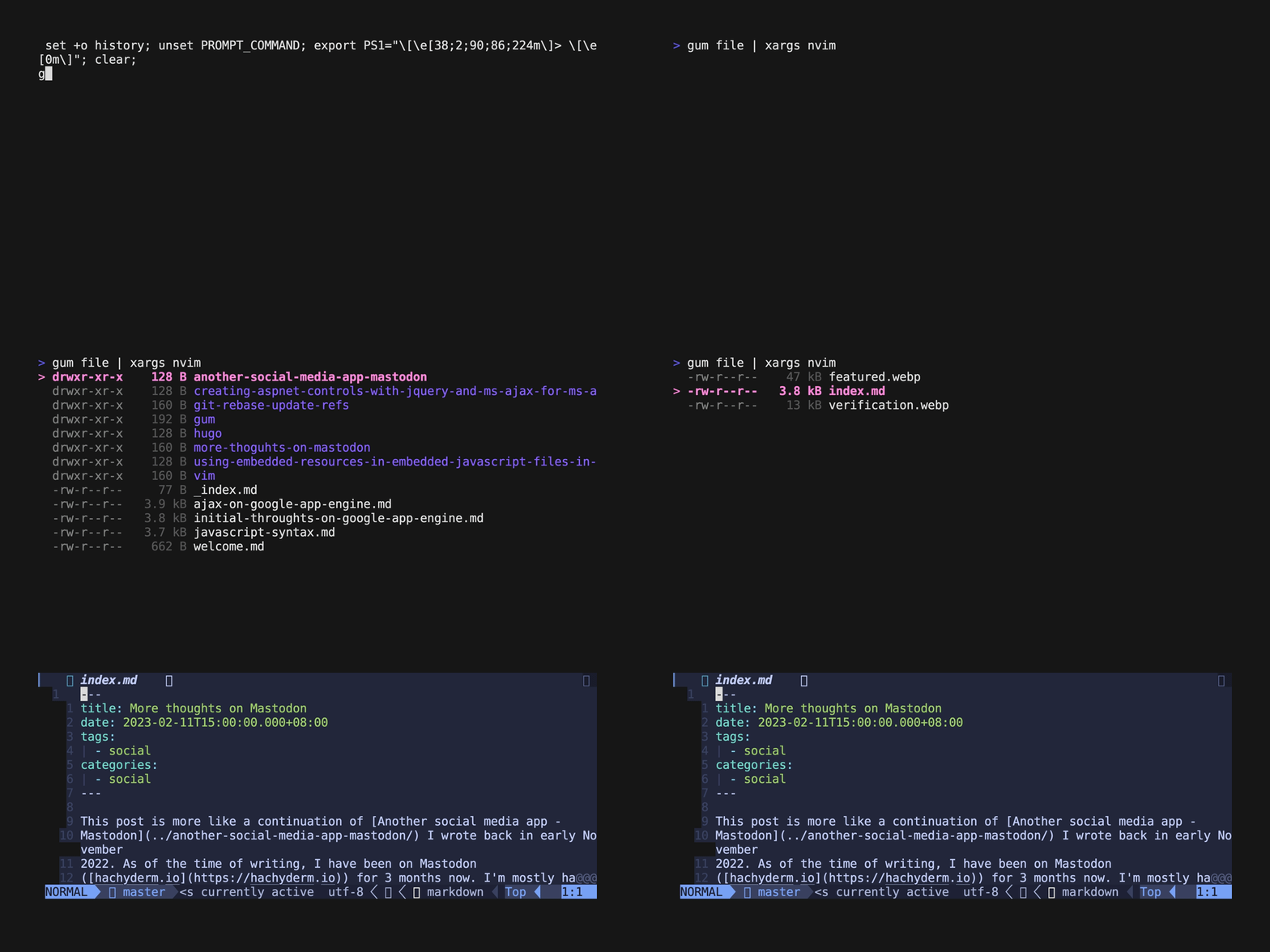
The above commands are nice but it did not make me jumping to use gum. When
I need to handle user input, gum input is really nice and it is something
I cannot avoid anymore.
priority=$(gum input --placeholder "Enter priority" --value="$priority")
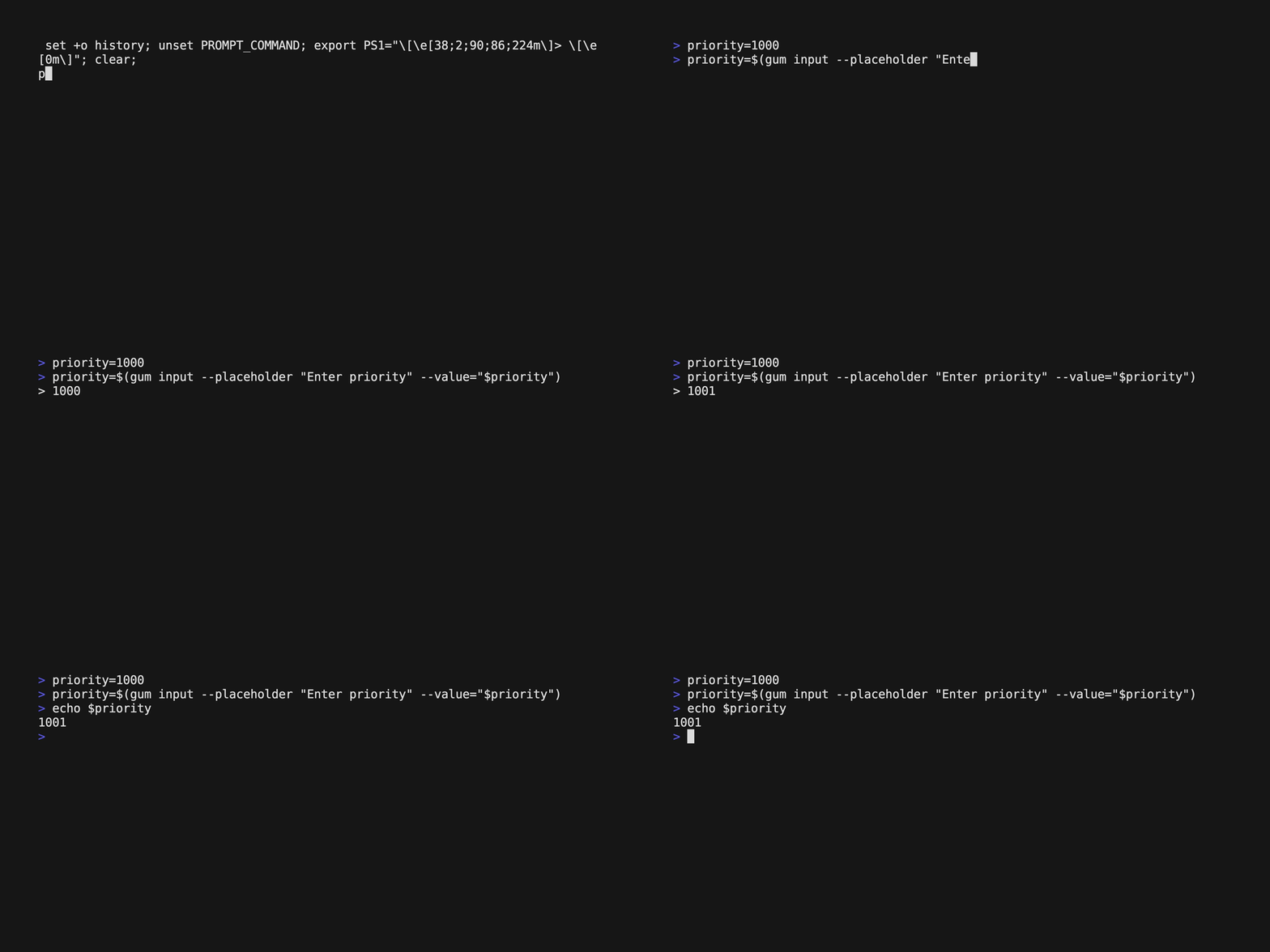
The above examples prompts user to input a priority number with a default number
(supplied via $priority).
gum input also has masks built-in so that you can handle input like passwords.
gum write works in a very similar way to gum input but it handles multi-line
input.
gum table is a super nice tool to present CSV data as a table in command line.
az sql mi list \
  | jq -r '.[] | .resourceGroup + "," + .name' \
  | gum table -c "Resource Group,Instance" -w 30,50
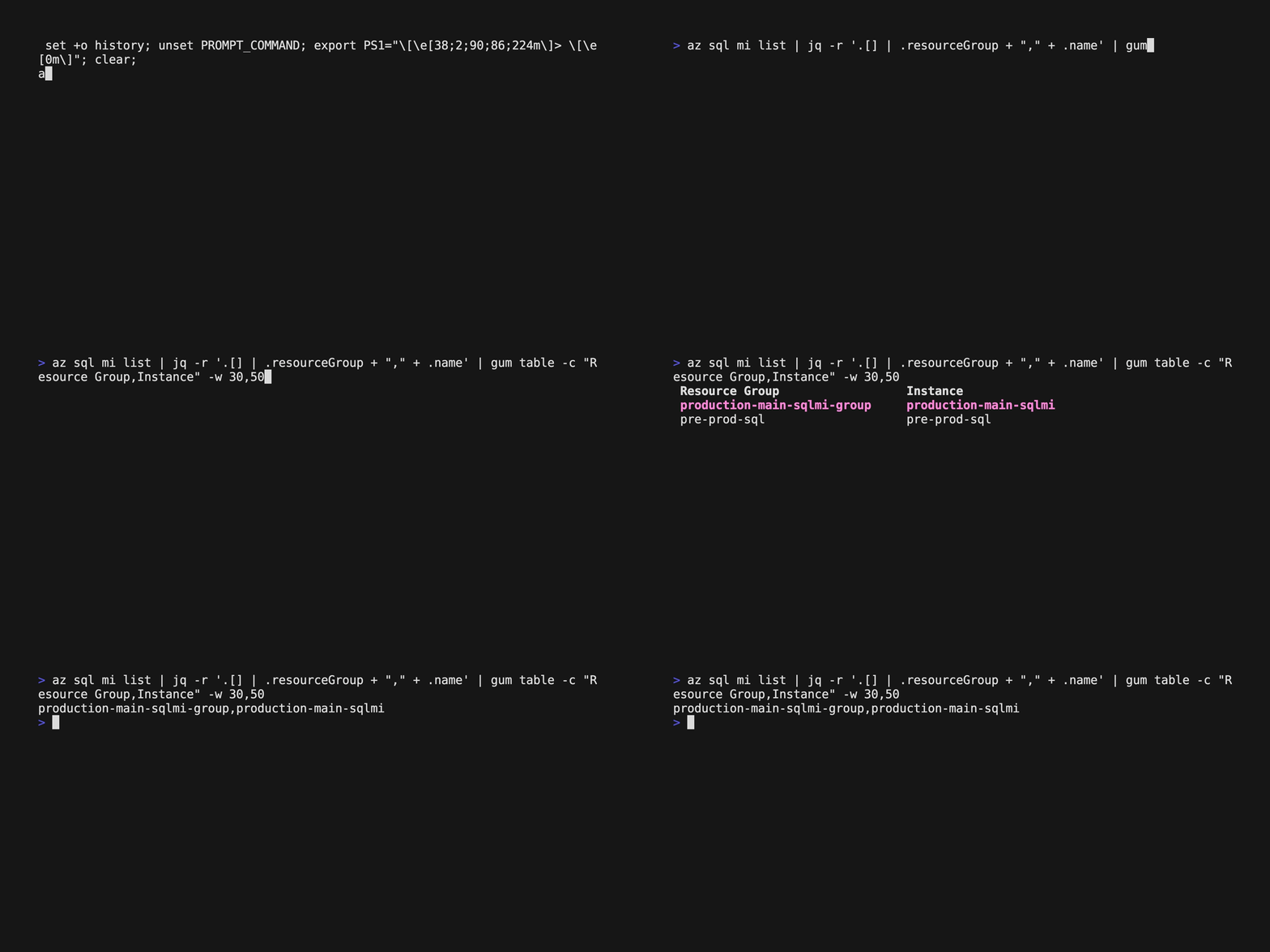
If option -c is not specified, it uses the first line of CSV as column
headers. Option -w allows user to specify column widths (in number of
characters).
One of the nice things with gum table is that it returns the selected row in
CSV format. This allows further parsing of the selected data with commands like
awk.
gum confirm has a nice interface in asking user to confirm before executing
a command. For example,
gum confirm "Update keys?" &&\
  gcloud compute project-info add-metadata --metadata-from-file=ssh-keys=$key_file
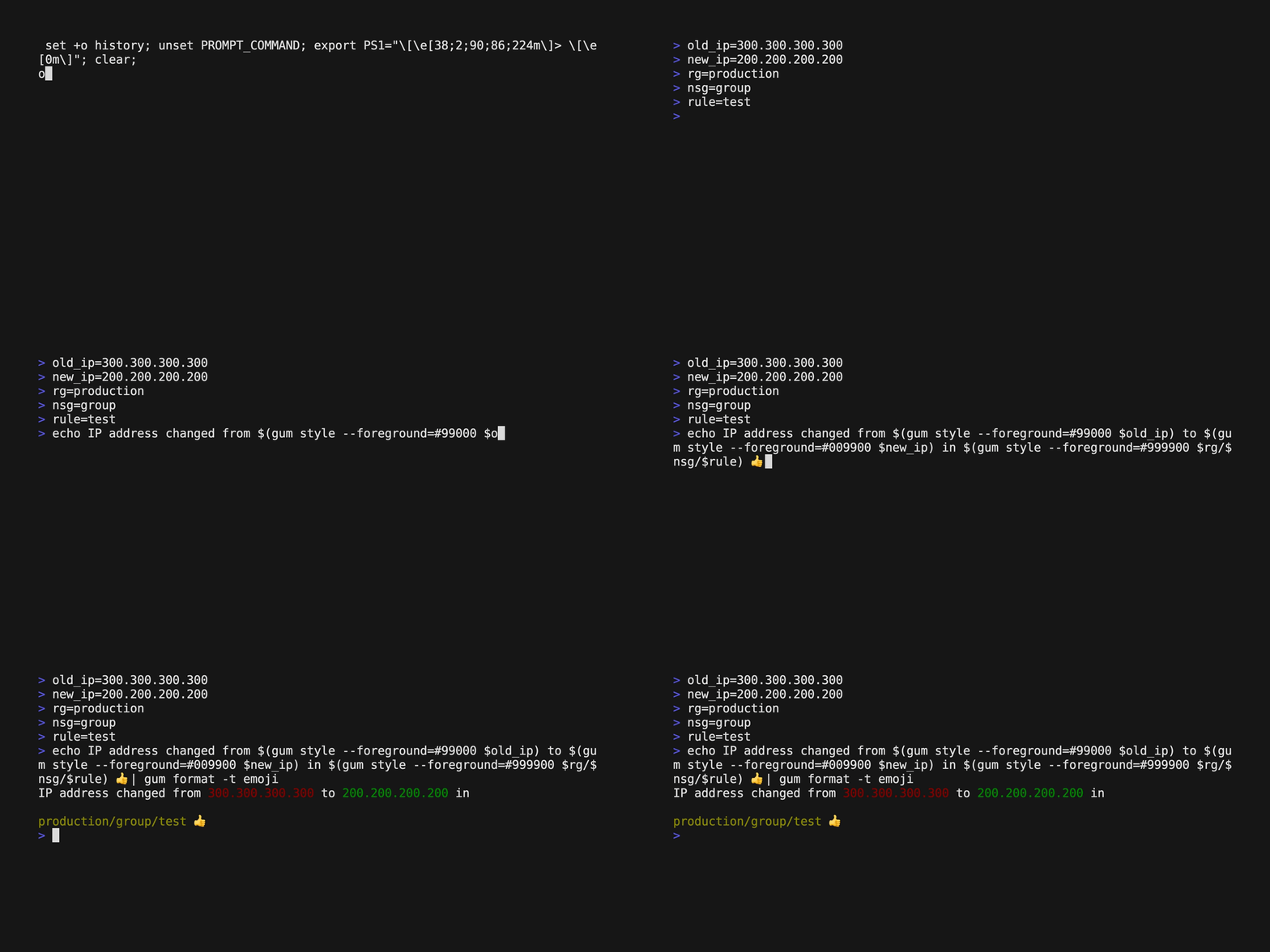
gum style and gum format provides a lot of tools in allowing users to
specify the aesthetics of the output.
echo IP address changed from $(gum style --foreground=#99000 $old_ip) to \
  $(gum style --foreground=#009900 $new_ip) in \
  $(gum style --foreground=#999900 $rg/$nsg/$rule) :+1: \
  | gum format -t emoji
For more practical examples, you can refer to the following files of bash functions.
There is also a videos tutorial Let’s build a conventional commit helper script with Gum! from charm.sh.
